These reports may be printed for Objects, Photos, Archives, and Library records. They include Catalog Card Styles 1 and 2, Catalog Record Labels, Exhibit Labels, Barcode Labels (with the optional Barcode Printing Upgrade), and Spine Labels for Library records.
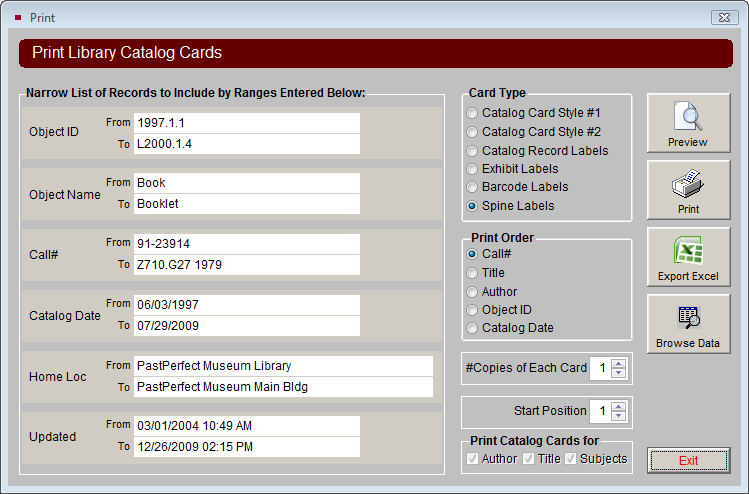
To print one of these reports, select the database, then highlight the desired report and click Run Selected Report. For this example, we will select Library Spine Labels. The Print Library Catalog Cards screen will appear.
Print Library Catalog Cards screen
To print your cards and labels, you will have the same options to narrow the ranges of records as you do when running Catalog Detail and Summary reports. Please see the section earlier in this chapter explaining how to narrow the range of records.
On the right, you may select your Card Type by clicking the radio button next to your choice. The Print Order determines the order in which the cards will be printed. You may print more than one copy of each card or label by changing the number in the #Copies of Each Card field. The Start Position number determines the card or label on which printing will begin. For example, if you are printing spine labels and you have used the first 3 labels on the page (horizontally), you can set the Start Position to "4" so it will begin printing on the 4th label.
Library cards also have the option to be printed for each Author, Title, and Subject per record. For example, if you have three Subjects on a record, you can print three Subject cards, one for each Subject. This allows you to print catalog cards similar to those used in a card catalog. Please note that if you have more than one of these boxes checked, you will have more than one card printed for each record. You must select at least one box to have cards printed.
The Catalog Card and Label reports have the same Report Output Options as the Catalog Detail and Summary reports, as described earlier in this chapter.
TIP: Catalog Card and Label reports may be run for one record at a time by going to the desired catalog record and clicking Print in the Navigation Bar at the top of the screen.