The Container List
Use the Container List when cataloging an archival record that describes materials contained in multiple storage units. The Container List tracks the physical location of the materials. For example, the Container List can be used when cataloging the document boxes that house a collection, series, or other unit of description.
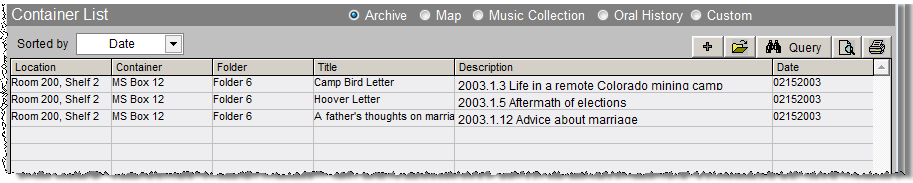
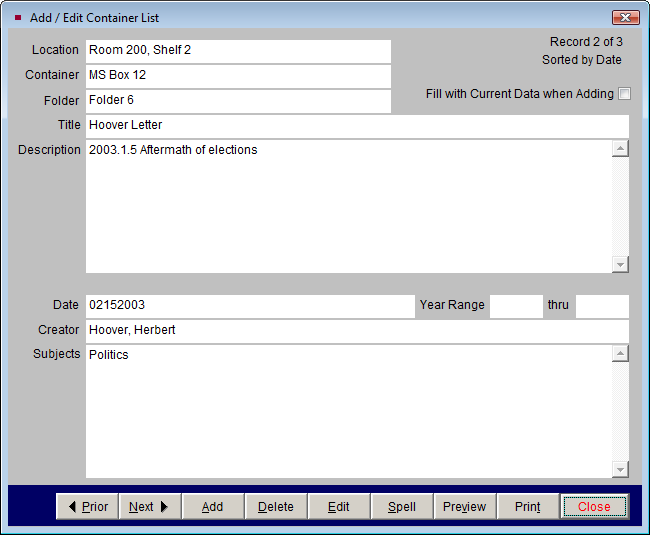
To add a new item to the Container List, click on the Container List button in the Sidebar on the left side of the screen. Once in the screen view, click on the plus sign button towards the right side of the screen. At the Add/Edit Container List screen, enter information in the Location, Container, Folder, Title, Description, Date, Year Range, Creator and Subjects fields. Click Save when finished.
You can Add, Delete, Edit, Spell check, Preview and Print container list records using the file folder icon button. If you want to add similar records using the Fill with Current Data when Adding check box, please be sure you are viewing the record to be copied. You will want to Edit that record and check the Fill with Current Data when Adding box. Save the record, then click Add. At the Add/Edit Container List screen, complete the data fields for the new record and click Save, then click Close. Your new record will appear in the list.
The Query button allows you to search this record's Container List for a word or phrase in all or selected fields. For example, if you want to search the Container field for "MS Box 122," you would uncheck the Location, Folder, Creator, Date, Title, Subjects and Description boxes. Then type "MS Box 122" in the Search for field. Your Container List will show the query results. When you want to view all Container List records, click the View All button. You can query all Archives records using Container List fields by clicking the Query button located within the Navigation Bar on the top of the catalog record screen.
Container List
The last two buttons on the right of the Container List screen enable you to preview and print Container List records.
To change the sort order of the Container List, select the desired order from the Sorted by drop-down menu. Items can be sorted by Container, Date, Entry, Folder, Location, and Title. Entry is the order in which they were added to the record.
Searching the Container List
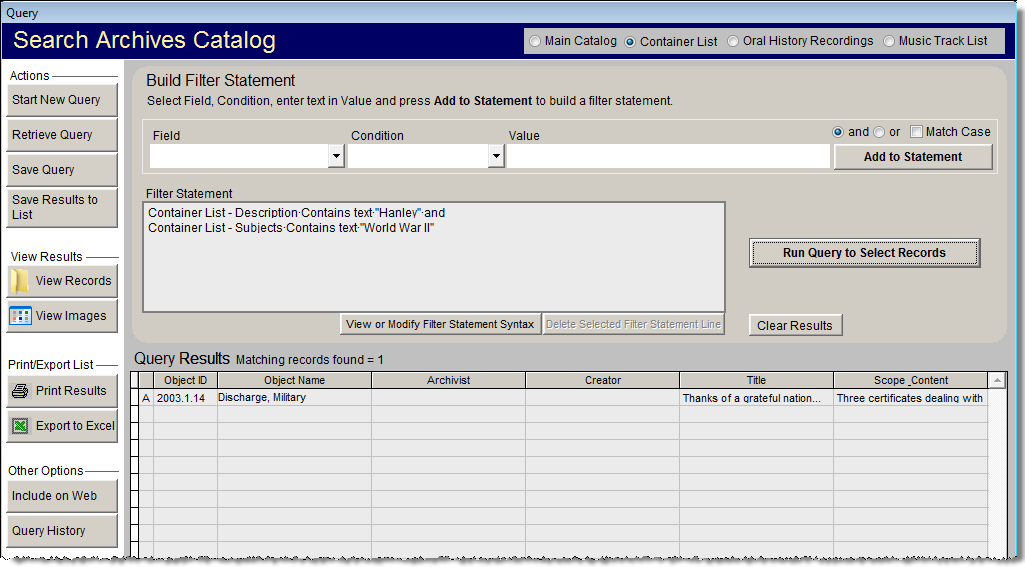
You may perform searches on the contents of the Container List using the Query button in the Navigation Bar at the top of the screen. The Query function allows you to search any field or combination of fields using a variety of conditions. To narrow the "search by" fields to just Container List fields, please use the radio button to select Container List at the top of the Search Archives Catalog screen. Select the field to search from its drop-down menu, choose a condition from its drop-down list, then enter a value. Once your statement is complete, click the Add to Statement button. You may add more statements using the "and" or "or" operators to build the filter statement. Once you have your desired search conditions, click the Run Query to Select Records button. The Archive records that meet your filter statement will appear in Query Results. Click the View Records button in the Sidebar to view those Archive records, then click the Container List button on each record to see the Container List entries. The Query function is discussed further in detail in Chapter 14 - Research.
Container List Search through Archives Query